Laptop overheating is one of the most common issues faced by users today. Whether you are using your laptop for work, gaming, or browsing, excessive heat can slow down performance, cause unexpected shutdowns, and damage internal components over time. Many users ignore overheating until it becomes a serious problem. However, understanding the causes and applying simple fixes can prevent costly repairs and improve the lifespan of your device. In this complete guide, we will explain the main causes of laptop overheating, how to fix it step by step, and practical tips to prevent it in the future.
Laptop overheating is usually caused by dust buildup, blocked airflow, or heavy CPU usage. Cleaning the cooling system, improving ventilation, and reducing background processes can quickly lower temperature and improve performance.
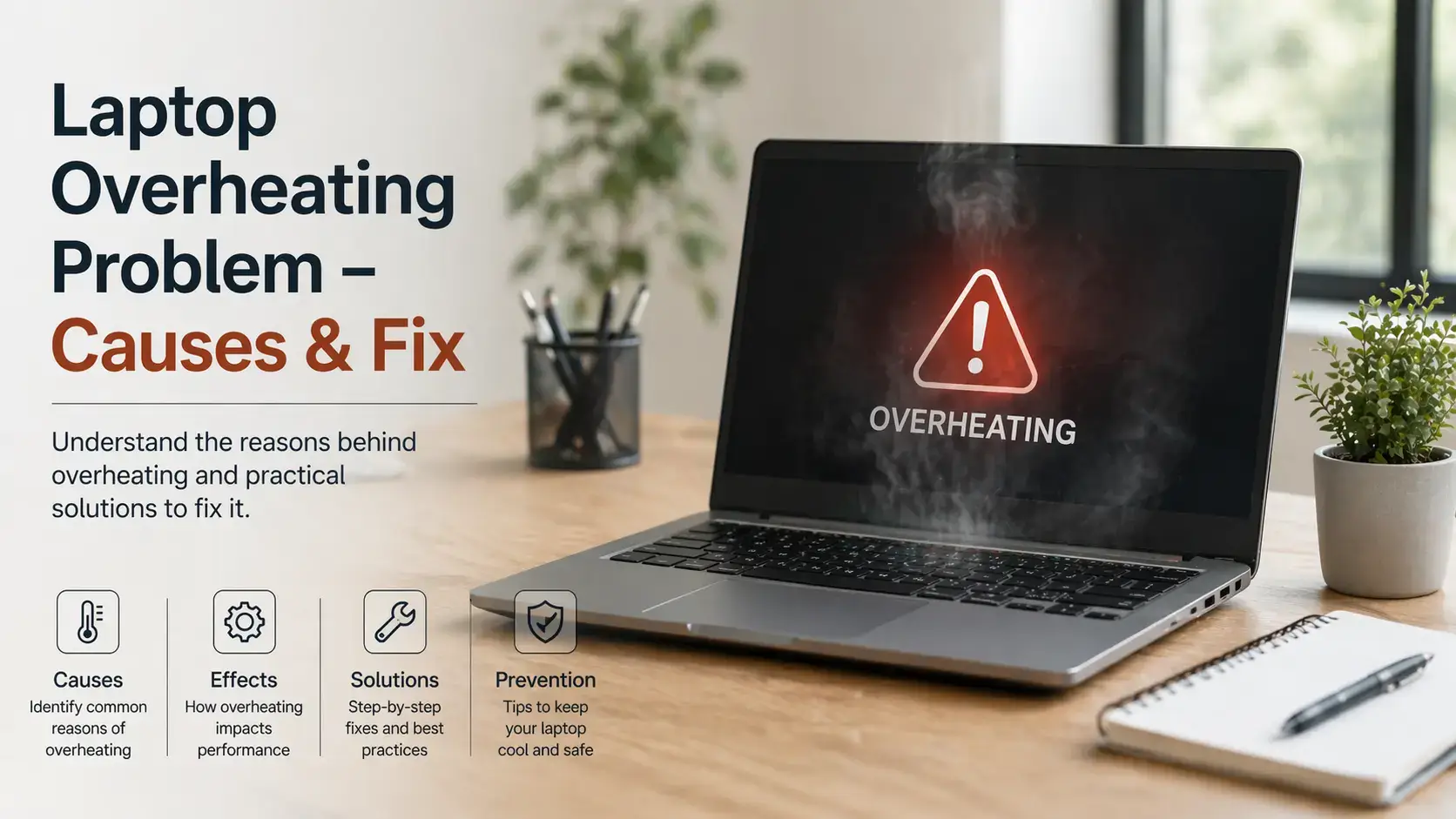
Common Causes of Laptop Overheating
Overheating happens when your laptop cannot properly release heat generated by internal components. Here are the most common reasons:
- Dust buildup inside the cooling fan and vents
- Blocked air circulation due to soft surfaces
- Running heavy applications or multiple programs
- Old or dried thermal paste
- Faulty or slow cooling fan
Dust is one of the biggest reasons for overheating. It blocks airflow and prevents the fan from cooling the system effectively, causing temperature to rise quickly.
How to Fix Laptop Overheating
You can fix most overheating problems by following these simple steps:
- Clean internal fan and air vents
- Use laptop on a flat and hard surface
- Close unnecessary background apps
- Replace thermal paste if needed
- Use a cooling pad for better airflow
Cleaning the laptop internally can significantly reduce temperature. If you are not comfortable opening your device, it is better to get professional help.
How Overheating Affects Performance
When a laptop overheats, it automatically reduces performance to protect internal components. This process is called thermal throttling.
- Slower system performance
- Lag during multitasking
- Game performance drops
- Unexpected shutdowns
If overheating is ignored for a long time, it can damage the motherboard, battery, and processor.
Tips to Prevent Laptop Overheating
- Clean your laptop every 3–6 months
- Avoid using laptop on bed or soft surfaces
- Keep vents unblocked
- Update system drivers regularly
- Monitor CPU usage
Regular maintenance is the best way to avoid overheating problems and extend your laptop’s life.
When You Need Professional Repair
If your laptop continues to overheat even after cleaning and basic fixes, it may indicate a deeper hardware issue.
- Fan not working properly
- Thermal paste completely dried
- Internal heat damage
Laptop Repair Service in Gurgaon
If your laptop is overheating and you need professional help, IT WORLD THE COMPUTER ITSOLUTION provides expert laptop repair services in Gurgaon with fast diagnosis and reliable solutions.
Book Laptop RepairFrequently Asked Questions (FAQs)
Why is my laptop overheating so fast?
It is usually caused by dust, blocked airflow, or high CPU usage.
Is overheating dangerous?
Yes, it can damage internal components if ignored.
Can overheating slow down performance?
Yes, it causes thermal throttling.
How often should I clean my laptop?
Every 3–6 months is recommended.
Do cooling pads really work?
Yes, they improve airflow and reduce heat.