A bootable USB is an essential tool for laptop repair. When a system fails to start, shows boot errors, or needs a clean operating system installation, a bootable USB allows you to take control of the machine and fix the issue without relying on the internal drive. This complete guide explains how to create a bootable USB for Windows, use advanced repair tools like Hiren’s Boot CD, and create a macOS installer. You will also learn BIOS/UEFI boot settings, common errors, and real repair scenarios.
What is a Bootable USB and Why It Matters
A bootable USB is a removable drive configured with system files that allow a computer to start (boot) directly from it. Instead of loading the operating system from the internal hard drive or SSD, the system loads from the USB device.
This is extremely useful in repair scenarios:
- Windows not booting (boot loop / blue screen)
- Corrupted system files
- Virus or ransomware infection
- Hard drive replacement
- Fresh OS installation
Requirements Before You Start
- USB drive (8GB minimum, 16GB recommended)
- ISO file (Windows / Hiren’s / macOS)
- Bootable software (Rufus recommended)
- A working computer to prepare USB
Note: Creating a bootable USB will erase all data on the USB drive.
Method 1: Create Windows Bootable USB (Rufus)
Rufus is one of the fastest and most reliable tools for creating bootable USB drives.
- Download Rufus from official website
- Insert USB drive
- Open Rufus (no installation required)
- Select your USB device
- Click “Select” and choose Windows ISO
- Partition scheme: GPT (UEFI) or MBR (Legacy)
- Click Start
The process usually takes 5–10 minutes. Once complete, your USB is ready to boot.
Method 2: Windows Media Creation Tool (Official)
- Download Media Creation Tool from Microsoft
- Run the tool
- Select “Create installation media”
- Choose language and version
- Select USB flash drive
- Wait for download + creation
This method is easier for beginners but requires internet download during setup.
Understanding ISO Files
An ISO file is a complete image of an operating system. It includes all installation files packed into a single file.
Common ISO types:
- Windows 10 / 11 ISO
- Hiren’s Boot CD ISO
- Linux distributions (Ubuntu, etc.)
Always download ISO files from official or trusted sources to avoid malware.
Using Hiren’s Boot CD for Advanced Repair
Hiren’s Boot CD is a powerful toolkit used by technicians for advanced laptop repair tasks.
- Password reset (Windows login bypass)
- Data recovery tools
- Disk health check
- Virus and malware removal
- Partition management
To create:
- Download Hiren’s ISO
- Open Rufus
- Select ISO file
- Click Start
How to Create macOS Bootable USB (Step-by-Step)
Creating a macOS bootable USB requires a Mac system and Terminal commands. This method is used for reinstalling macOS, fixing system errors, or performing a clean installation.
Requirements
- Mac computer
- USB drive (minimum 16GB for earlier versions or 32GB for latest versions)
- macOS installer (from App Store)
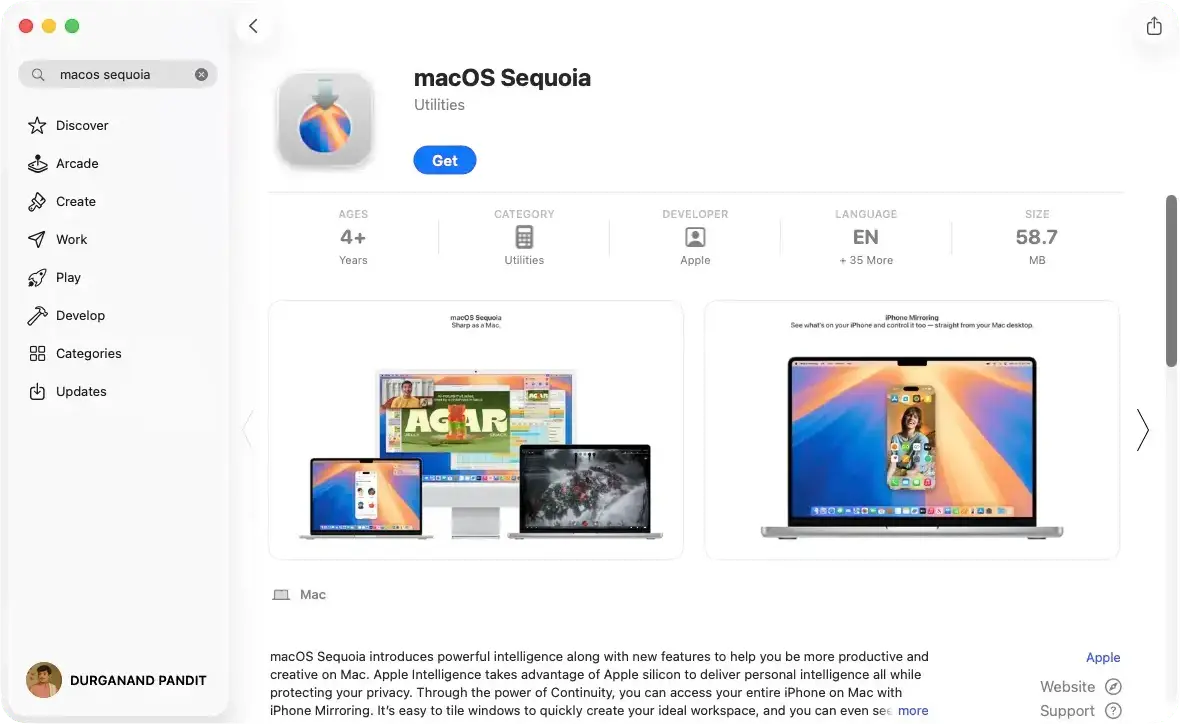
Step 1: Download macOS Installer
Open App Store → search macOS (Sequoia / Sonoma / Ventura / Monterey) → click GET
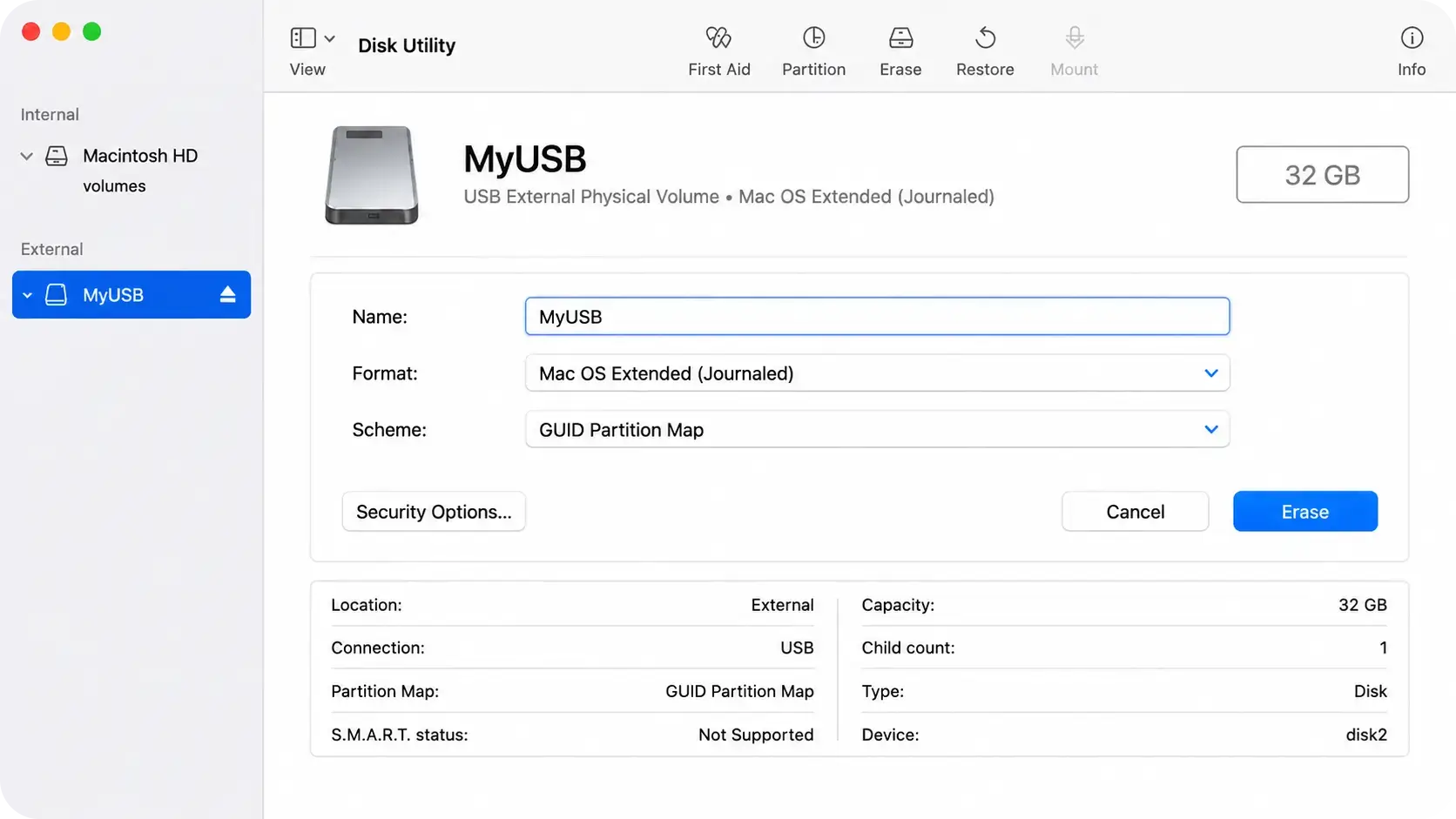
Step 2: Insert and Format USB
Open Disk Utility → Select USB → Click Erase Format: Mac OS Extended (Journaled) Scheme: GUID Partition Map
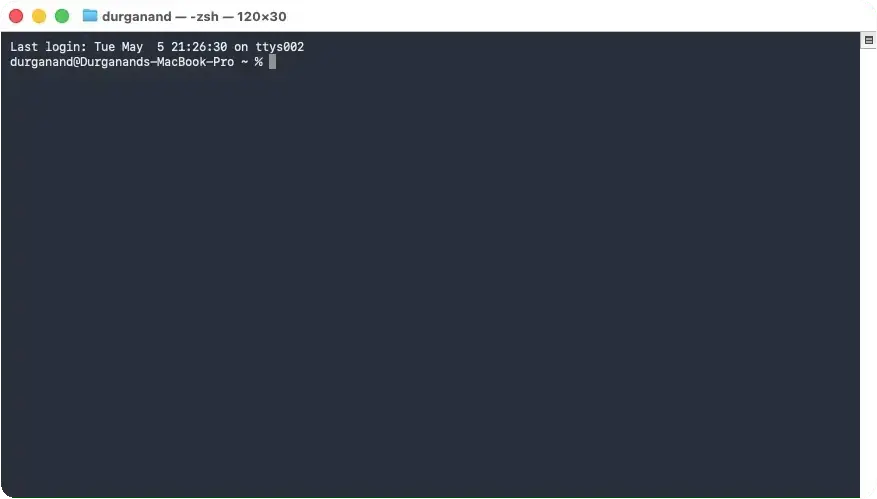
Step 3: Open Terminal
Go to Applications → Utilities → Terminal
Copy the appropriate command
Copy the command for your specific macOS version depending on which macOS you’ve downloaded, triple-click or drag within the scrollable area of one of these commands to select the full command. Then press Command-C to copy the command to the Clipboard.
For macOS Tahoe
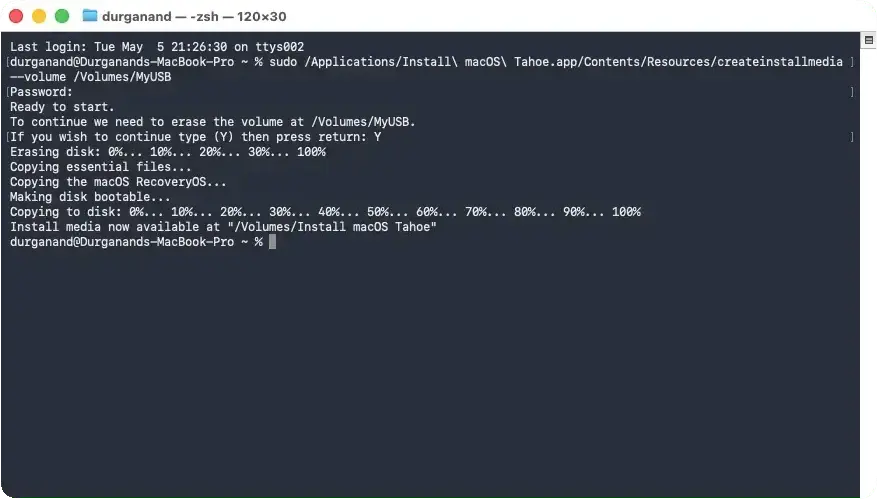
sudo /Applications/Install\ macOS\ Tahoe.app/Contents/Resources/createinstallmedia --volume /Volumes/MyUSB
For macOS Sequoia
sudo /Applications/Install\ macOS\ Sequoia.app/Contents/Resources/createinstallmedia --volume /Volumes/MyUSB
For macOS Sonoma
sudo /Applications/Install\ macOS\ Sonoma.app/Contents/Resources/createinstallmedia --volume /Volumes/MyUSB
For macOS Ventura
sudo /Applications/Install\ macOS\ Ventura.app/Contents/Resources/createinstallmedia --volume /Volumes/MyUSB
For macOS Monterey
sudo /Applications/Install\ macOS\ Monterey.app/Contents/Resources/createinstallmedia --volume /Volumes/MyUSB
For macOS Big Sur
sudo /Applications/Install\ macOS\ Big\ Sur.app/Contents/Resources/createinstallmedia --volume /Volumes/MyUSB
For macOS Catalina
sudo /Applications/Install\ macOS\ Catalina.app/Contents/Resources/createinstallmedia --volume /Volumes/MyUSB
Replace MyUSB with your USB drive name or Rename your USB drive to MyUSB.
Step 4: Enter Password
Enter your Mac password and press Y to confirm.
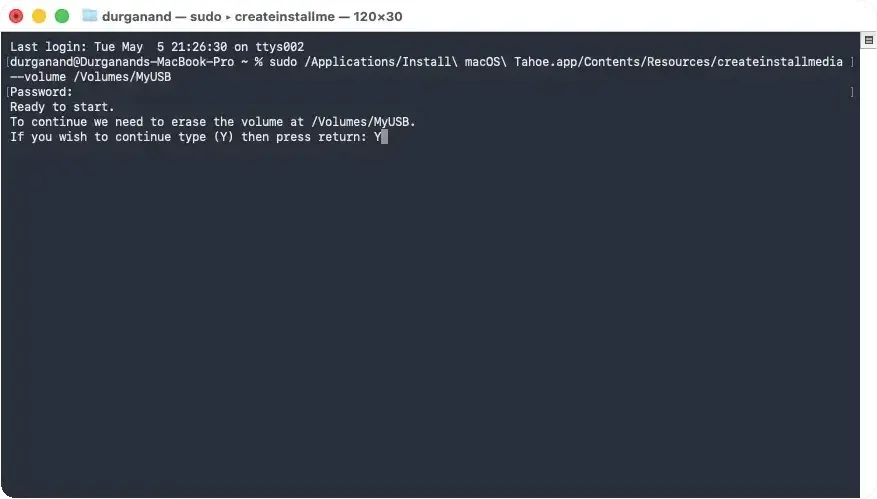
Step 5: Wait for Process
The process will take 10–20 minutes. After completion, your USB becomes bootable.
How to Boot Mac from USB
- Insert USB
- Restart Mac
- Hold Option (⌥) key for intel Macs
- Hold Power button for Apple Silicon Macs
- Select USB installer
How to Download macOS from Terminal
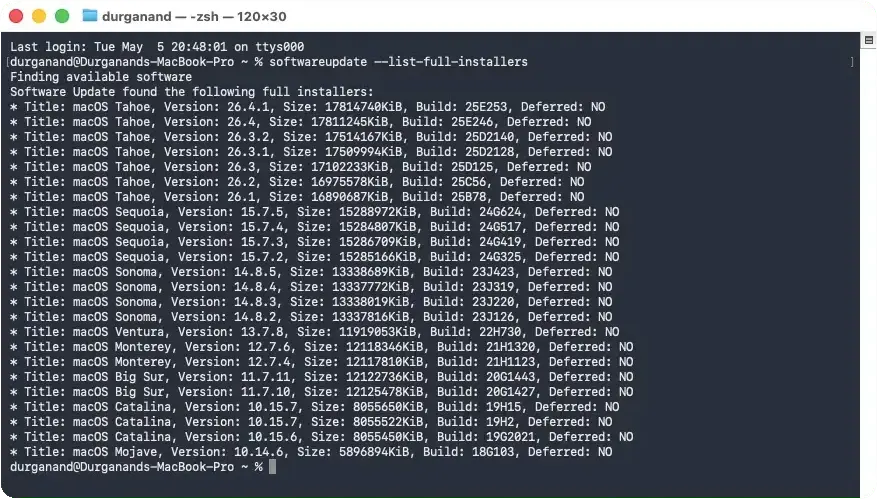
For macOS versions not available on App Store, you can download using Terminal with softwareupdate command.
Step 1: Open Terminal
Go to Applications → Utilities → Terminal
Step 2: List Available macOS Versions
Run the command:
softwareupdate --list-full-installers
Step 3: Download macOS Installer
Run the command with your desired version (Example: 26.4.1)
softwareupdate --fetch-full-installer --full-installer-version 26.4.1
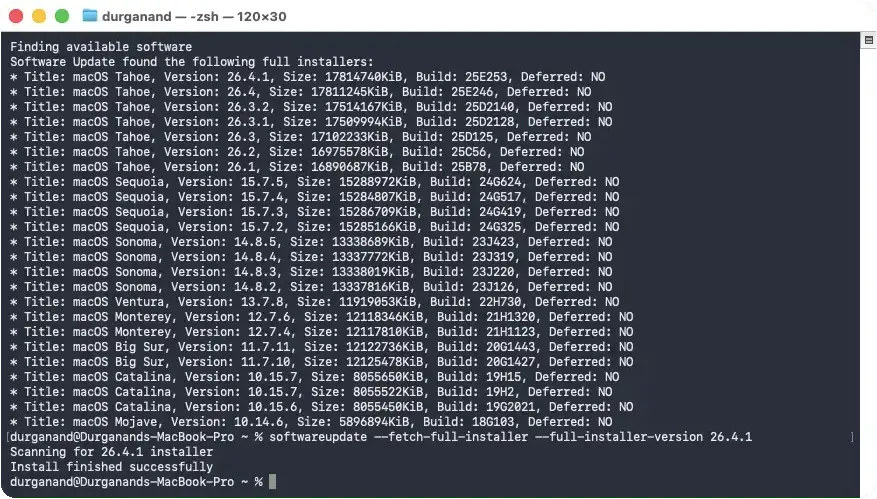
Step 4: Wait for Download
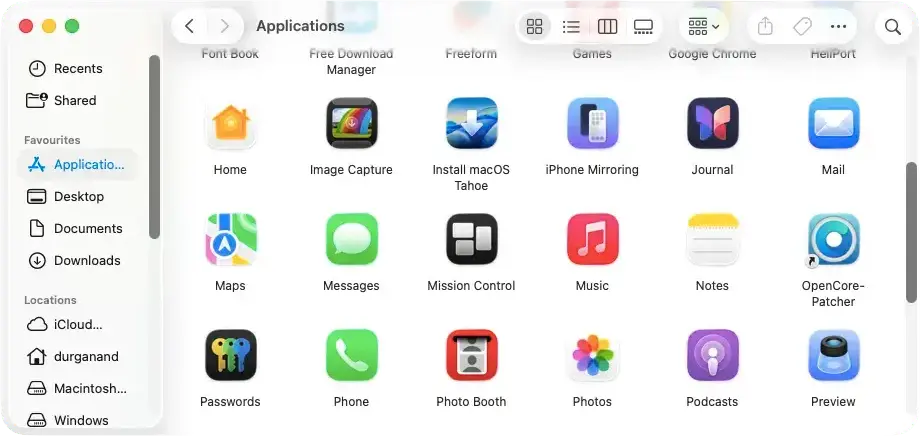
The installer will be downloaded to Applications folder.
How to Boot from USB (BIOS/UEFI)
- Insert bootable USB
- Restart laptop
- Press boot key (F12, ESC, DEL, F2)
- Select USB device
If USB is not showing:
- Disable Secure Boot
- Enable Legacy/CSM mode
- Check USB format (FAT32 recommended)
Common Errors and Fixes
- USB not detected: Try different port or recreate USB
- No bootable device: Check BIOS settings
- Installation stuck: Re-download ISO
- Boot loop: Use repair tools from USB
Real Repair Use Cases
- Fix Windows startup error
- Install fresh OS after virus
- Recover files from dead system
- Repair corrupted partitions
Professional Laptop Repair in Gurgaon
If you are unable to create or use a bootable USB, IT WORLD THE COMPUTER ITSOLUTION provides expert laptop repair services in Gurgaon including OS installation, data recovery, and system repair.
Get Professional Repair Support